AI资讯大全AIPPXP.CN搜索 ↗
AI TUTORIALS · STEP BY STEP

AI TutorialsAI教程

Follow along, and it just works.

手把手图文教程,跟着做就会。

全部内容75 篇

图文教程 · 手把手

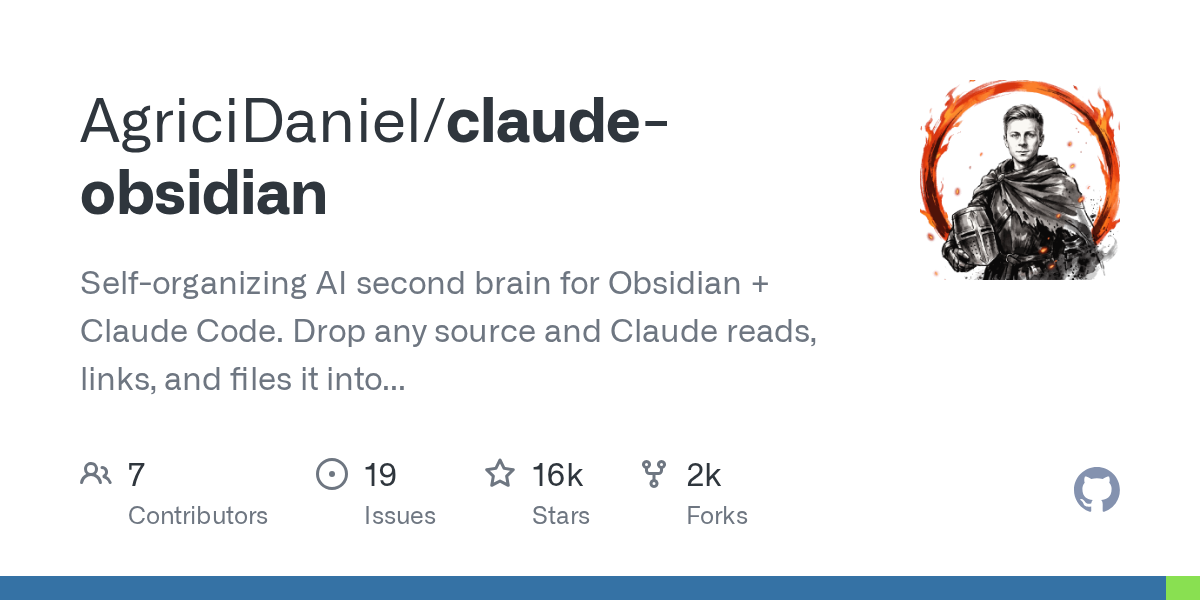
Illustrated Tutorial: Install claude-obsidian in three steps, so that every AI note has a source and every sentence can be traced back.图文教程:三步装好 claude-obsidian,让 AI 笔记条条有出处、句句可回溯

Follow along: Prepare the Obsidian vault and Claude Code → Install the plugin and connect the skills → Drop a piece of material into the vault and see it generate notes with citations → Ask questions to verify evidence-based answers. Runs entirely locally, making it suitable for users who want to seriously build a second brain.

跟着做一遍:准备 Obsidian 库和 Claude Code → 安装插件并接入技能 → 丢一篇资料进库看它生成带引用的笔记 → 提问验证证据式回答。全程本地运行,适合想认真搭第二大脑的用户。
图文教程 · 手把手

Illustrated Tutorial: Create Your Product's First Code-Level Promotional Video with video-shotcraft – From Setting Up the Environment to the Final Output图文教程:用 video-shotcraft 给你的产品做第一条代码级宣传片,从装环境到出片全流程

Follow along: Install the skills and Remotion dependencies → Prepare real page assets → Have the Agent storyboard the script → Render the final video and export the CapCut draft for fine-tuning. Take a look at the official Gallery before you start, and you'll be twice as efficient.

跟着做一遍:装好技能与 Remotion 依赖 → 准备真实页面素材 → 让 Agent 分镜出脚本 → 渲染成片并导出剪映草稿精修。先看一遍官方 Gallery 再动手,效率翻倍。

图文教程 · 手把手

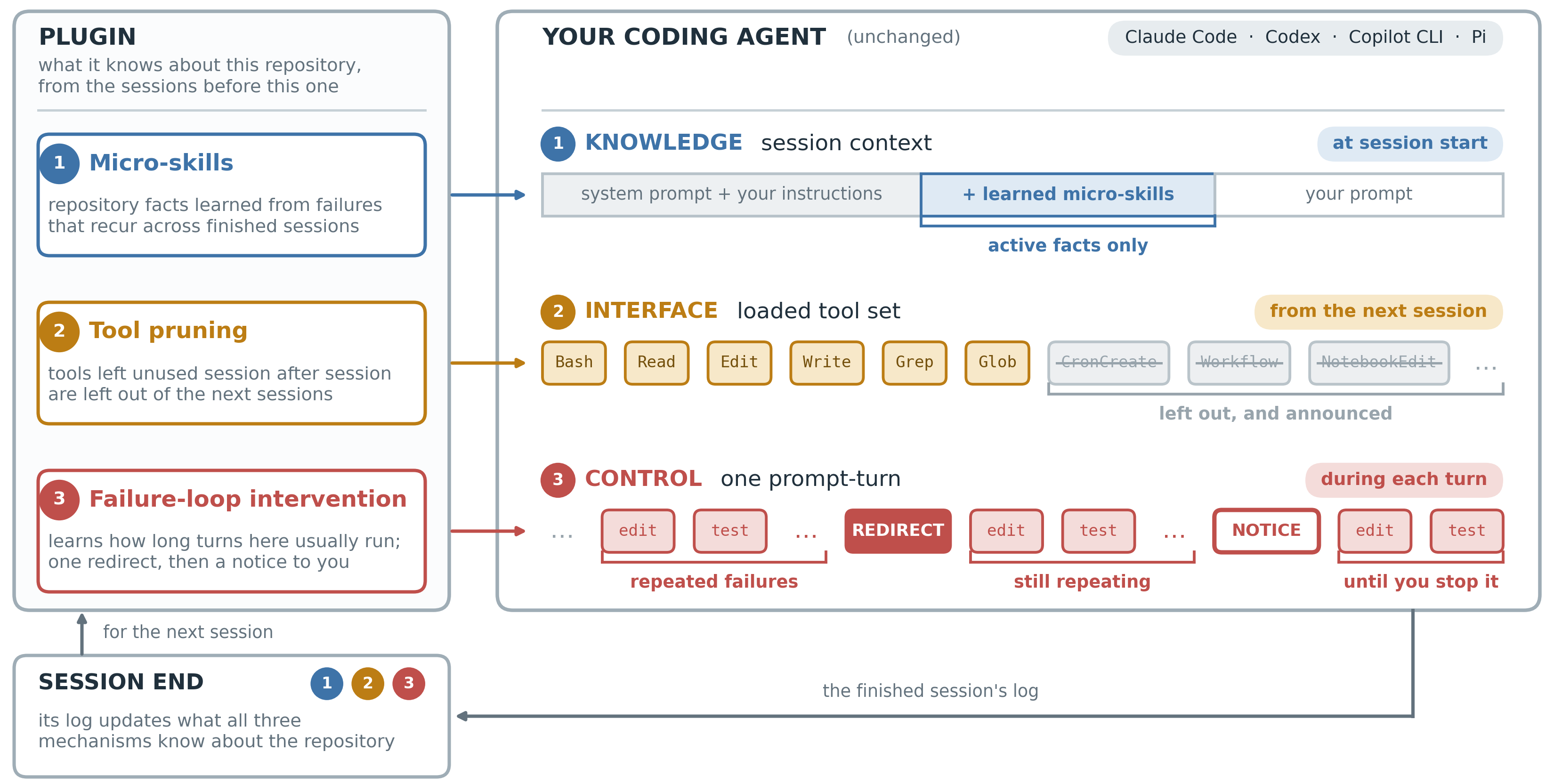
Illustrated Tutorial: Install Microsoft's official TokenEconomizer in three minutes to let your coding agent automatically save money图文教程:三分钟装上微软官方 TokenEconomizer,让编码 Agent 自动省钱

Follow these steps: Extract the plugin source code package → Register with Claude Code using three commands → Open the import for historical sessions → Understand the status report → Adjust parameters as needed. Requires Python 3.10+. Supports Claude Code, Codex, GitHub Copilot CLI, and Pi. No API key required at any point.

跟着做一遍:解压插件源码包 → 三条命令注册进 Claude Code → 打开历史会话导入 → 看懂 status 报告 → 按需调参。需要 Python 3.10+,支持 Claude Code、Codex、GitHub Copilot CLI 与 Pi,全程无需任何 API Key。

图文教程 · 手把手

Illustrated Tutorial: A Step-by-Step Guide to Conducting Your First Six-Stage Security Audit Using Official Cloudflare Techniques图文教程:手把手教你用 Cloudflare 官方技能跑第一次六阶段安全审计

Follow along step by step: Unzip and install the security-audit skill → Select a small repository for a test run → Understand the division of labour between the reconnaissance ledger and vulnerability hunting → Comprehend the three types of determinations in findings.json and the final report → Master incremental auditing and cost control. Compatible with Claude Code / Codex / Cursor, with zero additional dependencies.

跟着做一遍:解压安装 security-audit 技能 → 选一个小仓库试跑 → 看懂侦察账本与猎洞分工 → 读懂 findings.json 三种判定与最终报告 → 掌握增量审计与成本控制。适配 Claude Code / Codex / Cursor,零额外依赖。

图文教程 · 手把手

Graphics Tutorial: Matching the Obsidian Library with an AI Butler-obsidian-skills Installation and Three Actual Scenarios图文教程:给 Obsidian 库配上 AI 管家——obsidian-skills 安装与三个实战场景

Then do it again: confirm that the → three scenarios of the → environment installation obsidian-skills "Automatically build data view/paint project canvas/one-click collection webpage" will → learn to troubleshoot. The whole process is free, you don't need an API key, you just need to install Obsidian and an AI coding agent that supports skills.

跟着做一遍:确认环境 → 三选一安装 obsidian-skills → 实战「自动建数据视图 / 画项目画布 / 一键收藏网页」三个场景 → 学会排错。全程免费,不需要 API key,你只需要装好 Obsidian 和一个支持技能的 AI 编码代理。

图文教程 · 手把手

Text tutorial: 2 minutes to install "Don't make history again" to cure the bad problem of AI code change图文教程:两分钟装上「别再造史了」,治好 AI 乱改代码的坏毛病

Then do it again: confirm which of the several → unzipped stop-that-shit plug-ins have been shot by your Agent → Use an "export file" small experiment to verify that the hooks are effective → Learn to release legal checksums and other boundary adjustments. Requires Node.js 18 +, supports Claude Code, Codex, OpenCode and other mainstream hosts.

跟着做一遍:确认你的 Agent 中枪了哪几条 → 解压安装 stop-that-shit 插件 → 用一个「导出文件」小实验验证钩子生效 → 学会放行合法校验和等边界调整。需要 Node.js 18+,支持 Claude Code、Codex、OpenCode 等主流宿主。

图文教程 · 手把手

Graphic tutorial: Ten minutes to load Claude Code with “design taste” and run out of the first landing page that doesn't look like AI图文教程:十分钟给 Claude Code 装上「设计品味」,跑出第一个不像 AI 写的落地页

Then do it again: confirm the Node and browser environment in one of → three ways Install → taste-skill Write a qualified design requirement and → let it self-test three turns to produce a finished page. You don't need an API key, you don't need to install design software, you just need a computer with Chrome installed.

跟着做一遍:确认 Node 和浏览器环境 → 三种方式任选一种安装 taste-skill → 写一份合格的设计需求 → 让它自检三轮流出一个成品页。全程不需要 API key,也不需要装设计软件,你只需要一个装了 Chrome 的电脑。

图文教程 · 手把手

Graphics Tutorial: Deploy AI Watermark Cleaning Service on-premises to keep your documents and images clean图文教程:本地部署 AI 水印清理服务,让你的文档和图片干干净净

Then do it again: install Python and source code, → start the local cleaning service, install the skills → in Claude Code, and → use an AI-generated diagram and an AI-written document to check and clean up. It runs locally all the time, and the files don't leave your computer.

跟着做一遍:装好 Python 和源码 → 启动本地清理服务 → 在 Claude Code 里装技能 → 用一张 AI 生成图和一个 AI 写的文档实测检查与清理。全程本地运行,文件不出你的电脑。

图文教程 · 手把手

Graphic tutorial: Turn a 400-page technical book into a portable skill, from checking the environment to asking questions in five steps图文教程:把一本 400 页的技术书变成随身技能,从检查环境到开口提问只要五步

Then do it again: load the skill → check extractor and → choose the parsing method to → run a conversion to see what it generates → and really use it in the session. All local processing, your book will not be uploaded.

跟着做一遍:装技能 → 查提取器 → 选对解析方式 → 跑一次转换看它生成什么 → 在会话里真正用起来。全程本地处理,你的书不会上传。

图文教程 · 手把手

Graphic tutorial: build your own team of AI colleagues in half an hour, from setting up the environment to letting lead party and regularly running weekly newspapers图文教程:半小时搭起自己的 AI 同事团队,从装环境到让 lead 派活、定时跑周报

Then do it again: prepare Node and the engine → source to → build the first agent → group with a post on the desktop. A lead + expert team will → set up a weekly automatic running routine. No Docker or model subscription required.

跟着做一遍:准备 Node 与引擎 → 源码起桌面端 → 建第一个有岗位的 agent → 组一个 lead + 专家小队 → 设成每周自动跑的 Routine。不需要 Docker,也不需要模型订阅。

图文教程 · 手把手

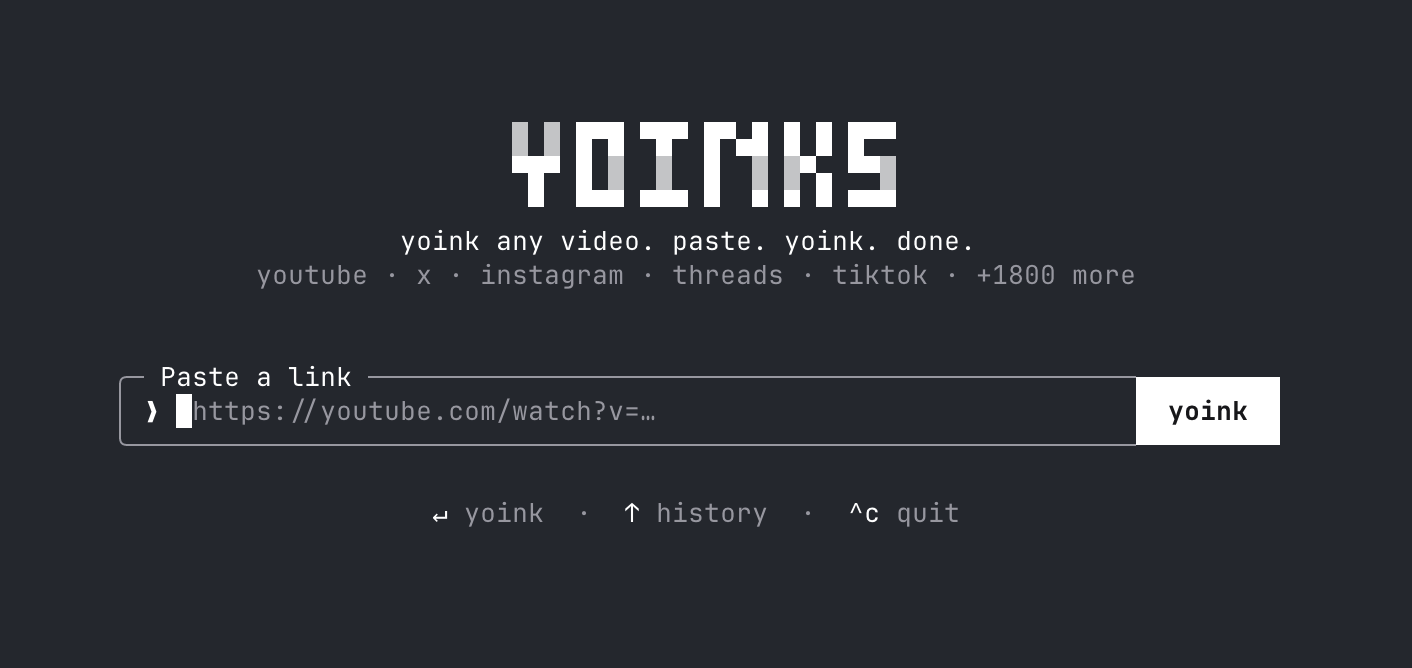
Graphic tutorial: 3 minutes to load up Yoinks and change the video download from "Advertisement" to paste it into a carriage return图文教程:三分钟装好 Yoinks,把视频下载从「斗智斗勇斗广告」变成粘贴一下回车

Then do it again: → Paste the link in the package and → choose the clarity or pull the mp3 to → get the file. The whole process is completed in the terminal without touching any download station. About 3 minutes.

跟着做一遍:装包 → 粘贴链接 → 选清晰度或抽 mp3 → 拿到文件。全程终端里完成,不碰任何下载站。大约 3 分钟。

图文教程 · 手把手

Graphic tutorial: Equip Claude Code with Planning with Files and from today/clear will no longer clear your tasks图文教程:给 Claude Code 装上 Planning with Files,从今天起 /clear 不再清空你的任务

Then do it again: install the skill and → send a long task to → see it write out three plan documents → intentionally/clear to verify the recovery and → stop the door to release. About 15 minutes.

跟着做一遍:装技能 → 派一个长任务 → 亲眼看它写出三份计划文件 → 故意 /clear 验证恢复 → 看停止门放行。大约 15 分钟。

图文教程 · 手把手

Graphic tutorial: three commands to turn the entire project into a queryable knowledge graph, agents no longer need to flip the file图文教程:三条命令把整个项目变成可查询的知识图谱,代理再也不用翻文件

Follow along: Install CLI → Register Skills→/graphify. Build the diagram → and ask the question with query/path/explain. No one line of configuration is written throughout the process, and the code parsing is completely run locally.

跟着做一遍:装 CLI → 注册技能 → /graphify . 建图 → 用 query / path / explain 提问。全程不写一行配置,代码解析完全在本地跑。

图文教程 · 手把手

Graphic tutorial: loading Ruflo into Claude Code, from an empty project to a team of collaborative agents图文教程:把 Ruflo 装进 Claude Code,从空项目到一支会协作的代理小队

Then do it again: add the plug-in market, → install the three-piece set, → initialize the project, and → send the first task to the → console to see what it is doing and how much it costs. About 10 minutes.

跟着做一遍:加插件市场 → 装三件套 → 初始化项目 → 派第一个任务 → 在控制台看它在干什么、花了多少钱。大约 10 分钟。

图文教程 · 手把手

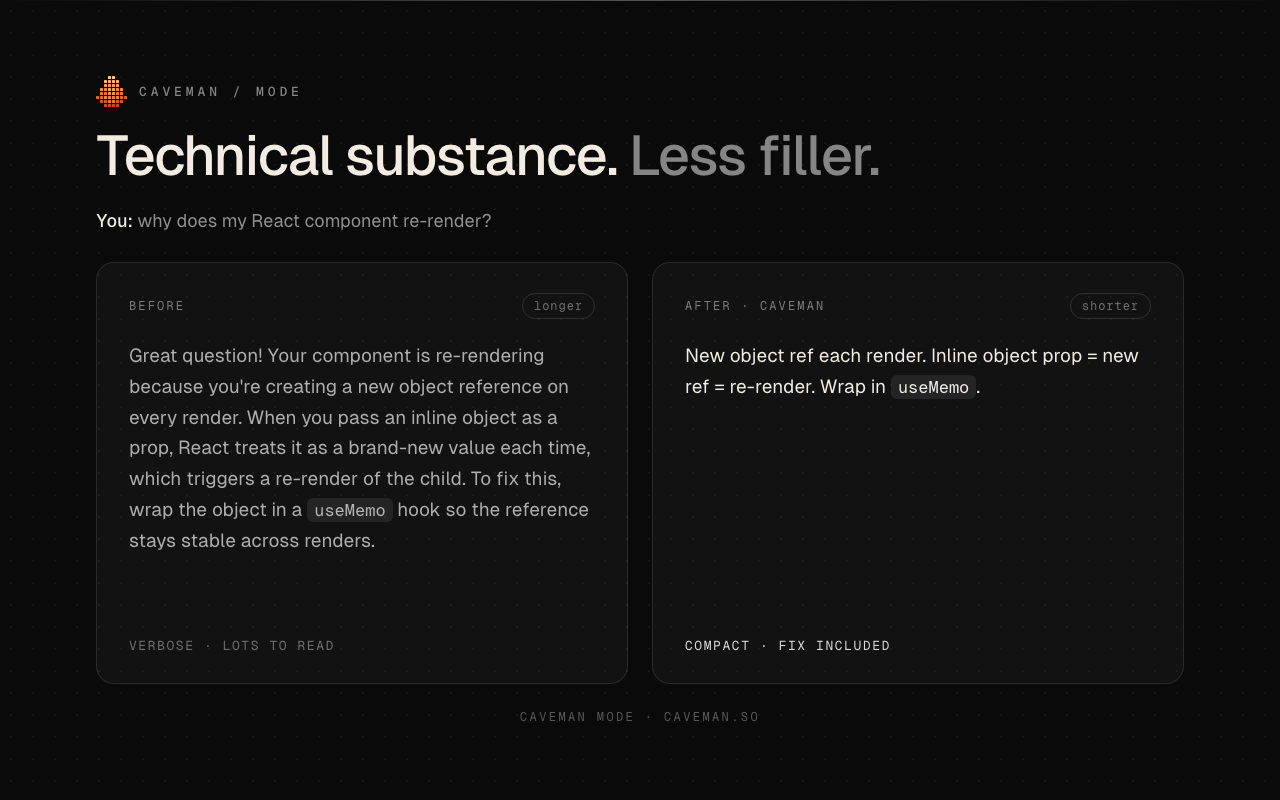
Graphic tutorial: five minutes to install the Caveman province token plugin, so that Claude Code can do more work with less nonsense图文教程:五分钟装好 Caveman 省 token 插件,让 Claude Code 少说废话多干活

Then do it again: unzip the plugin package and → run the installation script (or npx one-click) to→ restart the session to verify that the output is shorter and shifted → as needed. There is no need to change any model configuration during the whole process.

跟着做一遍:解压插件包 → 运行安装脚本(或 npx 一键装)→ 重启会话验证输出变短 → 按需调档位。全程不需要改任何模型配置。

图文教程 · 手把手

Image and text tutorial: Install UI UX Pro Max on Claude Code, and make the AI interface look good from "working" to "good-looking" in three steps图文教程:给 Claude Code 装上 UI UX Pro Max,三步让 AI 界面从「能用」变「好看」

Then do it again: load the → skill into a command-generated design system → that lets the AI redo your page in style libraries. Two installation commands plus one natural language.

跟着做一遍:装技能 → 用命令生成设计系统 → 让 AI 按风格库重做你的页面。全程两条安装命令加一句自然语言。

图文教程 · 手把手

Text tutorial: 3 steps to equip Claude with Desktop Commander and let him run the command to change the file himself图文教程:三步给 Claude 装上 Desktop Commander,让它自己跑命令改文件

Then do it again: get the installation package and → write the MCP server into the configuration→. Verify the terminal execution, file search, and diff code change with the real task, and complete the whole process in ten minutes.

跟着做一遍:获取安装包 → 把 MCP 服务器写进配置 → 用真实任务验证终端执行、文件搜索、diff 改码三大能力,全程十分钟内完成。

图文教程 · 手把手

Graphic tutorial: Turn Claude Code into a video studio with the OpenMontage skill pack, from loading to filming图文教程:用 OpenMontage 技能包把 Claude Code 变成视频制片厂,从装到出片

Then do it again: decompress the skill pack and → hang the 157 skill files into Claude Code. → Use a pipeline command to let the AI go through the complete process of scripting, framing, dubbing, and synthesizing.

跟着做一遍:解压技能包 → 把 157 个技能文件挂进 Claude Code → 用一条管线命令让 AI 走完脚本、分镜、配音、合成的完整流程。

图文教程 · 手把手

Graphic tutorial: Driving development with Spec Kit specifications, from specifying init to generating implementation图文教程:用 Spec Kit 跑通规格驱动开发,从 specify init 到生成实现一遍走完

Then do it again: install the specify-cli → initialization project and bind your AI agent to write the specification → according to the seven-step command flow, disassemble the task → so that the agent is generated and implemented according to the specification, and do not go astray throughout the process.

跟着做一遍:安装 specify-cli → 初始化项目并绑定你的 AI 智能体 → 按七步命令流写规格、拆任务 → 让智能体按规格生成实现,全程不跑偏。

图文教程 · 手把手

Text tutorial: 3-Step Run through DeepSeek Harness, start the local console with npx and install the first plug-in图文教程:三步跑通 DeepSeek Harness,用 npx 启动本地控制台并装上第一个插件

Then do it again: install Node.js → npx A command starts the web console → to install plugin extension capabilities in the interface, and learn to use the official document station to troubleshoot problems by the way.

跟着做一遍:装 Node.js → npx 一条命令启动 Web 控制台 → 在界面里装插件扩展能力,顺便学会用官方文档站排查问题。

图文教程 · 手把手

Step-by-step: use PPT Master to get Claude Code to build a presentation-ready native PPT in ten minutes图文教程:用 PPT Master 让 Claude Code 十分钟做出一份能直接汇报的原生 PPT

Follow along: install the skill pack, describe your topic and audience, let the agent draft an outline and produce the .pptx, then fine-tune and deliver. No coding and no design background required.

跟着做一遍:装好技能包 → 说清主题与受众 → 让它先出大纲再产出 .pptx → 打开文件微调并交付。全程不需要写代码,也不需要设计基础。

图文教程 · 手把手

Step-by-step: let Claude Code drive a real browser for you with agent-browser, from login to export图文教程:用 agent-browser 让 Claude Code 替你操作真实浏览器,从登录到导出一遍跑通

Follow along: install the CLI, hook it into Claude Code, drive login, scraping and export with natural-language instructions, then learn to review snapshots and recordings.

跟着做一遍:装好命令行 → 接入 Claude Code → 用自然语言下指令完成登录、抓取与导出 → 学会看快照与录屏复盘。

图文教程 · 手把手

Illustrated tutorial: three steps to teach Claude Code to model, and build a 3D-printable part in one sentence图文教程:三步让 Claude Code 学会建模,用一句话做出可 3D 打印的零件

A hands-on walkthrough of the text-to-cad plugin that entered the library today: confirm the uv environment, install the plugin with two commands, have the agent output STEP / STL files from a single sentence, then run a manufacturability check and export an engineering drawing. Everything runs locally, and no CAD background is needed.

手把手带你用今天入库的 text-to-cad 插件:先确认 uv 环境、两行命令装好插件,再用一句话让智能体输出 STEP / STL 文件,最后做一次可制造性检查并导出工程图纸。全程在本机完成,不需要任何 CAD 基础。

图文教程 · 手把手

Illustrated tutorial: take apart an app feature with REA, from observed behaviour down to implementation evidence图文教程:用 REA 拆解一个 App 的功能,从行为一路挖到实现证据

Run the full reverse-engineering loop with the REA that entered the library today: register it and back up your configuration with a single command, have the agent analyse a feature you care about and demand evidence and limitations, then ask it to build a similar feature in your own project.

用今天入库的 REA 走一遍完整逆向流程:一条命令完成智能体注册与配置备份,然后让智能体分析一个你关心的功能、要它给出证据与局限,最后让它在你自己的项目里实现一个类似功能。

图文教程 · 手把手

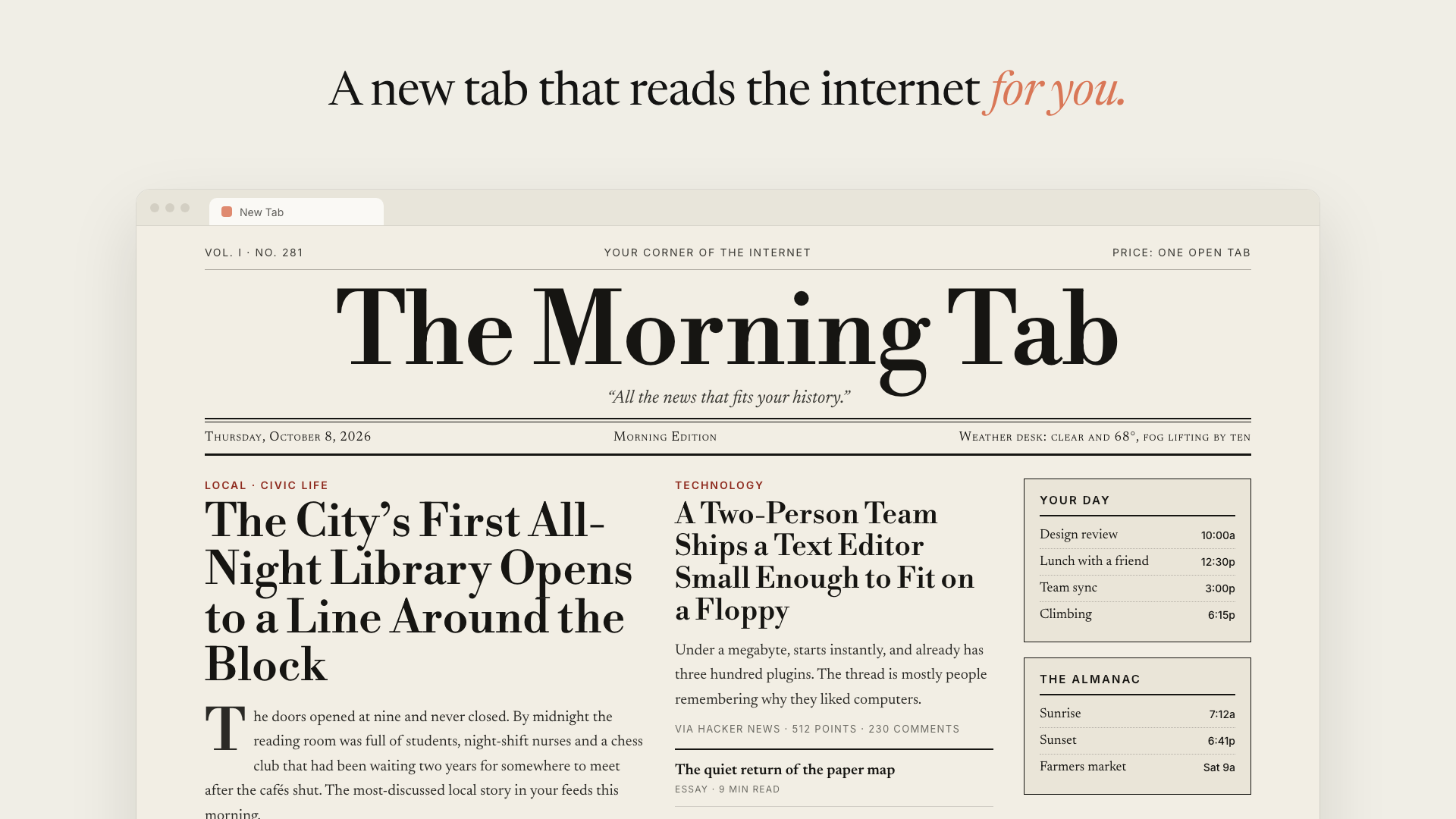
Text Tutorial: 6 Steps to Change Your Chrome New Tab Page to the One Claude Writes for You Every Day图文教程:六步把 Chrome 新标签页换成 Claude 每天为你写的一页

Run your AI Homepage from scratch with this tutorial: install dependencies and build extensions, load Chrome in developer mode, complete the first build to see your homepage, and finally teach you how to change the layout with a sentence, block sites you don't want to be read, and turn on automatic rebuilding. You'll need to bring your own Anthropic API Key along the way, at no additional cost.

这篇教程带你从零把 AI Homepage 跑起来:先装依赖并构建扩展,再在开发者模式下加载进 Chrome,然后完成第一次构建看到自己的首页,最后教你怎么用一句话改版式、把不想被读的站点屏蔽掉,以及打开自动重建。全程需要自备一个 Anthropic API Key,除此之外没有任何费用。

From blank new tab to your own homepage in six steps查看 →查看 →
图文教程 · 手把手

Graphic tutorial: Claude Code as a job search pipeline, from filing to interview preparation图文教程:把 Claude Code 搭成求职流水线,从建档到面试准备走完一整轮

This tutorial takes you through AI Job Search: build a private warehouse to protect your personal data, install the toolchain, and then run through/setup to file,/scrape to grab jobs,/rank to score,/apply to produce custom resumes and cover letters, and/interview to prepare for interviews. You will need to have a Claude Code environment available to you throughout the process.

这篇教程带你完整跑一遍 AI Job Search:先建一个私有仓库把个人数据保护起来,再把工具链装好,然后依次跑通 /setup 建档、/scrape 抓岗位、/rank 排序打分、/apply 产出定制简历与求职信、/interview 准备面试。全程需要你已经有一个可用的 Claude Code 环境。

Profile, scrape, rank, apply, interview — a full loop查看 →查看 →
图文教程 · 手把手

Tutorial: 3 Steps to Claude Code Official 13 Plugin教程:三步把 Claude Code 官方 13 插件用起来

From downloading the official plug-in collection and picking the three plug-ins that should be installed the most, to verifying that the plug-in is really working and connecting to the daily process, the process takes about ten minutes. After installation, code review, submission specifications, and security checks are all automated.

从下载官方插件合集、挑出最该装的三个插件,到验证插件真正生效并接入日常流程,全程约十分钟。装完之后代码审查、提交规范、安全检查全部自动化。

Install official plugins in three steps · code review, commits and security built in查看 →查看 →
图文教程 · 手把手

Tutorial: Four Steps for Claude to Direct ComfyUI Drawing via MCP教程:四步让 Claude 通过 MCP 直接指挥 ComfyUI 出图

From preparing the ComfyUI, deploying the Pixelle MCP, registering the workflow as an MCP tool, and plotting a sentence in Claude, run in four steps. Prerequisite: The machine is equipped with ComfyUI and can draw normally.

从准备 ComfyUI、部署 Pixelle MCP,到把工作流注册成 MCP 工具、在 Claude 里一句话出图,四步跑通。前提:本机已装 ComfyUI 并能正常出图。

Wire ComfyUI to Claude in four steps · workflow-to-tool in one minute查看 →查看 →
图文教程 · 手把手

Tutorial: Equip the Programming Agent with Matt Pocock skills and run through the first closed loop教程:给编程智能体装上 Matt Pocock 技能并跑通第一个闭环

Install, initialize, interrogate a program with grill-me, and then implement it with TDD skills - a complete closed loop of 4 steps to experience this set of 280,000 stars for about 15 minutes.

安装、初始化、用 grill-me 逼问一个方案、再用 TDD 技能实现它——四步体验这套 28 万星技能的完整闭环,约十五分钟。

From install to first loop · grill, spec, TDD, review in 15 minutes查看 →查看 →
手把手教程 · 图文步骤

Graphic tutorial: Half an hour to ride your own free big model gateway and let Claude Code/Cursor/Aider all go local/v1图文教程:半小时搭完自己的免费大模型网关,让 Claude Code / Cursor / Aider 全部走本地 /v1

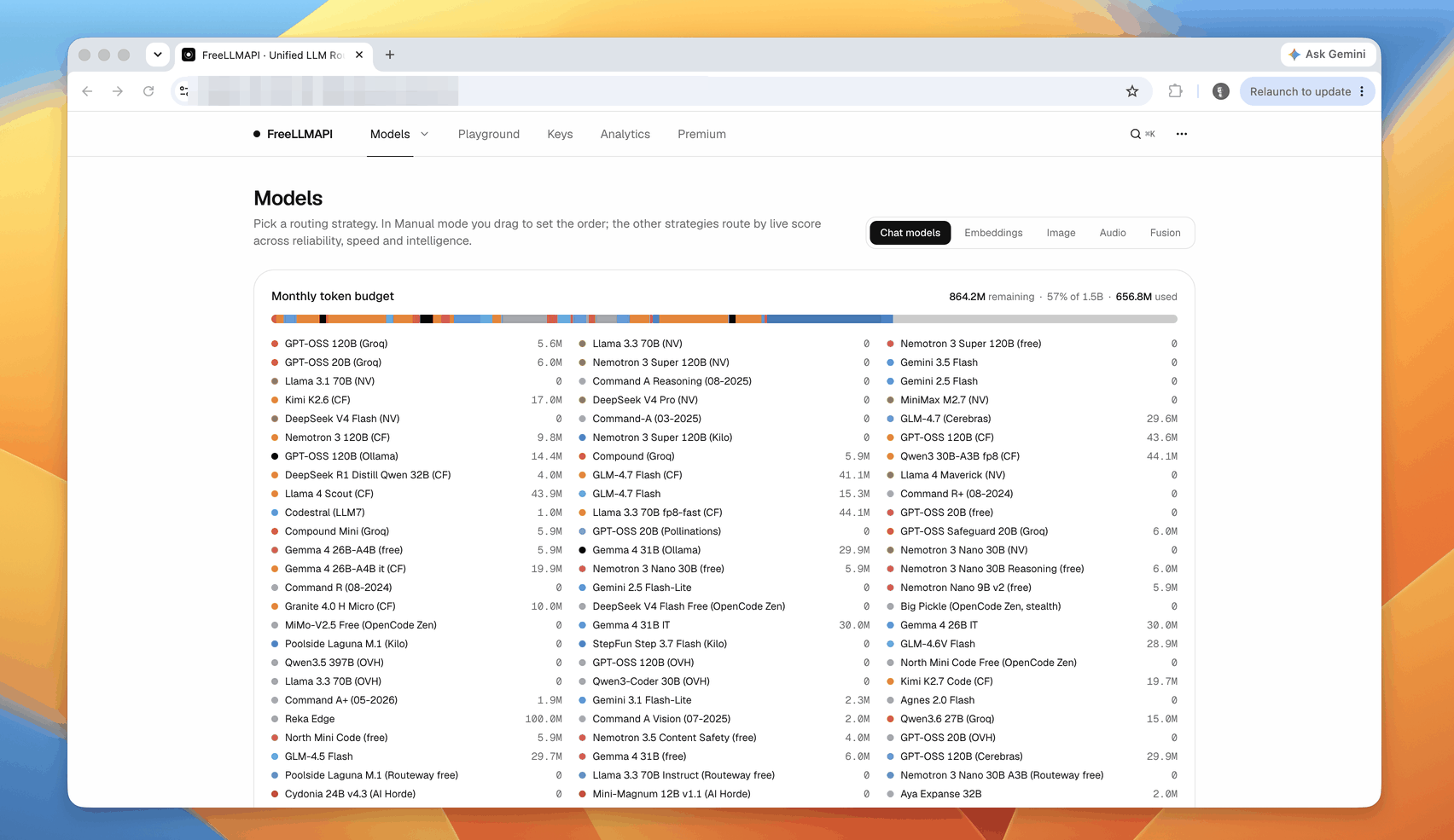
This tutorial takes you from scratch to running FreeLLMAPI: start the service locally, fill in the keys of several free vendors, then point Claude Code to your own endpoint with a command, and finally verify that the routing and automatic demotion really work with a script. There is no need to buy any paid APIs during the whole process, the only thing to do is to go to each official website to collect free credits.

这篇教程带你从零把 FreeLLMAPI 跑起来:先把服务起在本地,再把几家免费厂商的 Key 填进去,然后用一条命令把 Claude Code 指到你自己的端点,最后用一个脚本验证路由和自动降级真的生效。全程不需要买任何付费 API,唯一要做的是去各家官网领免费额度。

手把手教程 · 图文步骤

Graphic tutorial: make your first film with art animation skills, from loading Skill to rendering MP4图文教程:用艺术动画技能做第一支片,从装 Skill 到渲染出 MP4

This tutorial breaks down a seemingly “artistic” skill into five executable steps: load up skills and dependencies, run a verification environment first, choose an artistic style to frame, drive a commentary clip with JSON, and finally deliver it as a clip through QA access control. Take huashu-art-motion as an example, after the whole process, you will get your own style of animation, not a video drawn from a card.

这篇教程把一个看起来「很艺术」的技能拆成可执行的五步:装好技能与依赖、先跑一帧验证环境、选一个艺术风格出静帧、用 JSON 驱动一段解说片段、最后过 QA 门禁交付成片。全程以 huashu-art-motion 为例,做完你会得到一段自己风格的动画,而不是一段抽卡抽来的视频。

手把手教程 · 图文步骤

Graphics Tutorial: Installing MCP for ChatGPT/DeepSeek Web, from plugin to first local tool图文教程:给 ChatGPT / DeepSeek 网页版装上 MCP,从装插件到跑通第一个本地工具

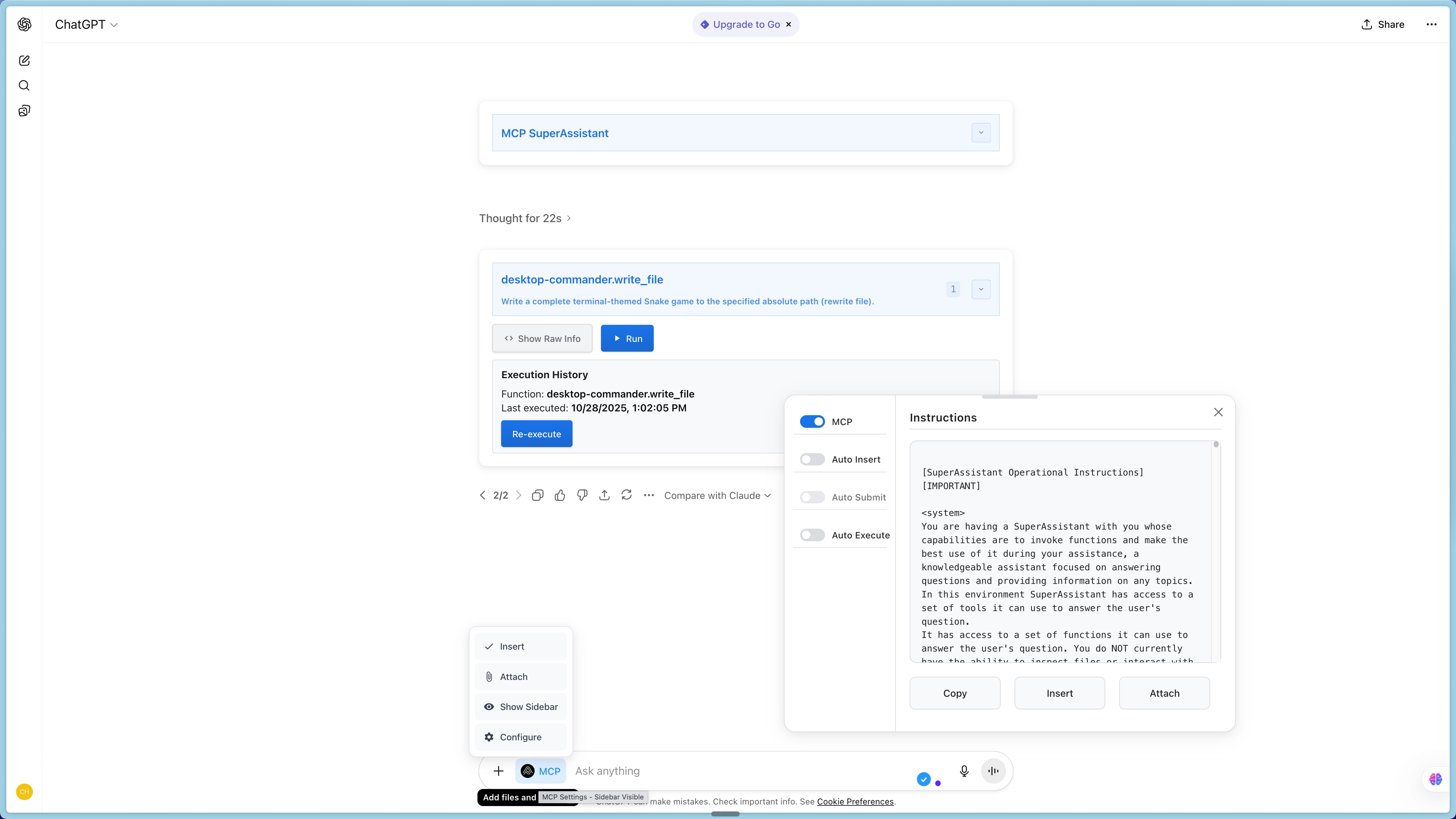
This tutorial will help you turn the web-based AI you use every day into a working assistant: first build the MCP SuperAssistant extension with the source code, then start an MCP service locally, and finally go back to the ChatGPT web version and click the button to let the AI actually read the file on your machine. No API Key is required throughout, and no AI platform settings need to be changed.

这篇教程带你把自己天天在用的网页版 AI 变成能真正干活的助手:先用源码构建 MCP SuperAssistant 扩展,再在本地起一个 MCP 服务,最后回到 ChatGPT 网页版里点一下按钮,让 AI 真的读到你本机上的文件。全程不需要 API Key,也不需要改任何 AI 平台设置。

手把手教程 · 图文步骤

Text tutorial: Save Kanban from installation to reading by giving Claude Code and Codex save tokens with RTK图文教程:用 RTK 给 Claude Code 与 Codex 省 token,从安装到读懂节省看板

Many people think that saving money depends on replacing a smaller model. In fact, a more effective step is not to feed the noise to the model first. This tutorial will guide you to load RTK into the AI programming assistant: do a global initialization first, then verify whether the hook is effective, then open the save Kanban board to compare before and after, and finally explain which cases it can not help, to avoid the effect of misjudgment.

很多人以为省钱要靠换更小的模型,其实更有效的一步是先别把噪声喂给模型。这篇教程带你把 RTK 装进 AI 编程助手:先做一次全局初始化,再验证钩子是否生效,然后打开节省看板对照前后来看,最后讲清楚哪些情况下它帮不上忙,避免误判效果。

手把手教程 · 图文步骤

Image and text tutorial: 5 minutes to pack the tree and cut the webpage and video into Obsidian (including AI question configuration)图文教程:5 分钟装好乔木剪藏,把网页和视频剪进 Obsidian(含 AI 提问配置)

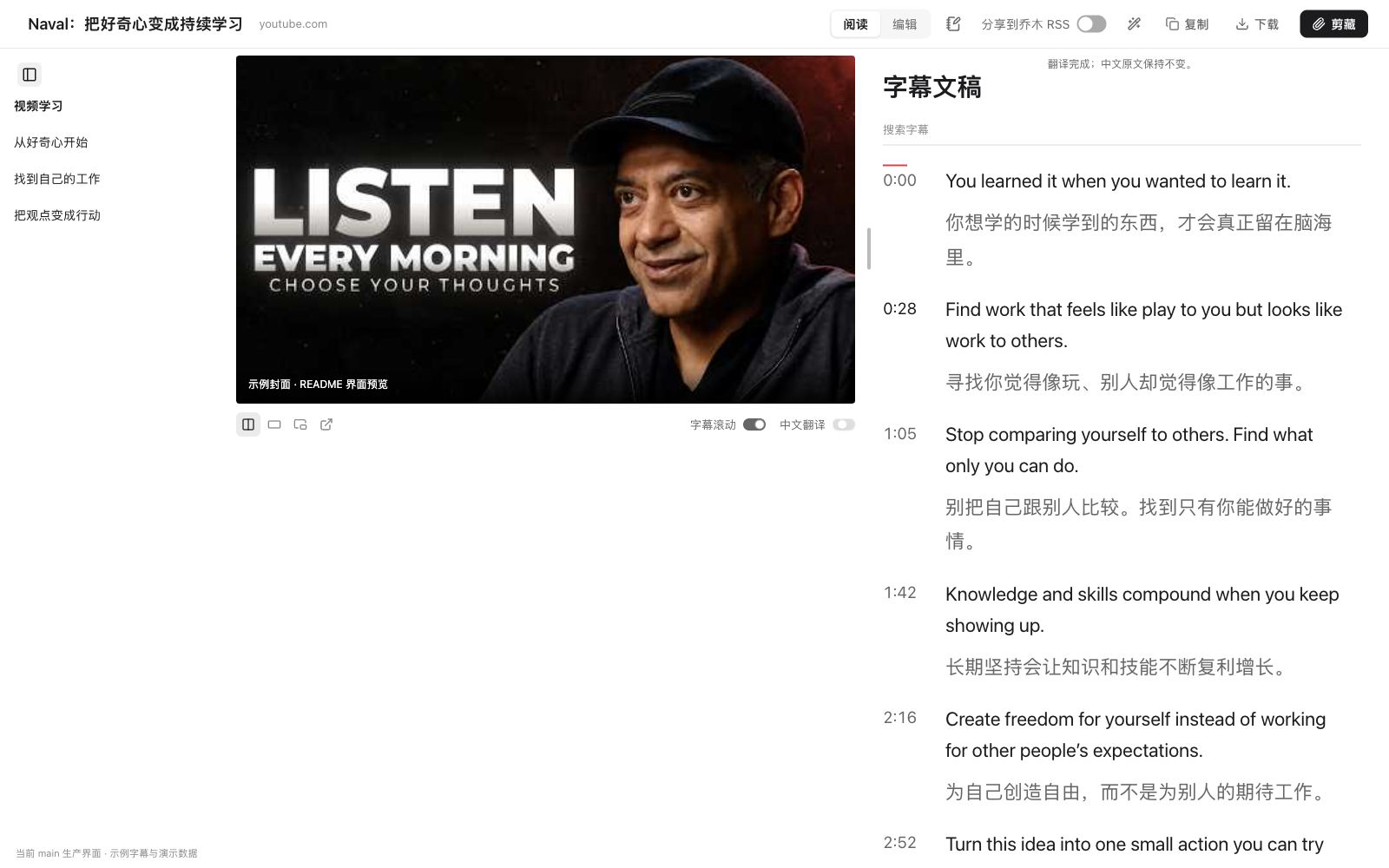
From downloading the installation package to cutting the first article, you only need to press the keyboard three times in a row. This tutorial walks through it according to the real interface screenshots: installing plug-ins, matching AI, watching videos for bilingual notes, cutting to Obsidian with one click, and finally giving a shortcut key cheat sheet. By doing this, you can turn "favorite gray" into a searchable note library.

从下载安装包到剪下第一篇文章,全程只需要连着按三下键盘。这篇教程按真实界面截图走一遍:装插件、配 AI、看视频做双语笔记、一键剪藏到 Obsidian,最后给出快捷键速查表,照着做就能把「收藏夹吃灰」变成可检索的笔记库。

手把手教程 · 图文步骤

Teletext Tutorial: Deploy OpenCut locally and set up your own free editing workbench in a dozen minutes图文教程:本地部署 OpenCut,十几分钟搭一套属于自己的免费剪辑工作台

Don't want to pay for the annual cost of editing software anymore, and don't want to pass customer material to someone else's cloud? This tutorial shows you how to use the source code to run the classic version of OpenCut locally: install the environment, pull the code, load the dependency, start the service, then build the project, upload the material, cut the first video, and finally explain how to deploy it to your own domain name for the team to share.

不想再为剪辑软件年费买单、也不想把客户素材传到别人的云上?这篇教程带你用源码在本地把 OpenCut 经典版跑起来:装环境、拉代码、装依赖、启动服务,然后建工程、上素材、剪出第一段成片,最后讲清楚怎么把它部署到自己的域名上给团队共用。

手把手教程 · 图文步骤

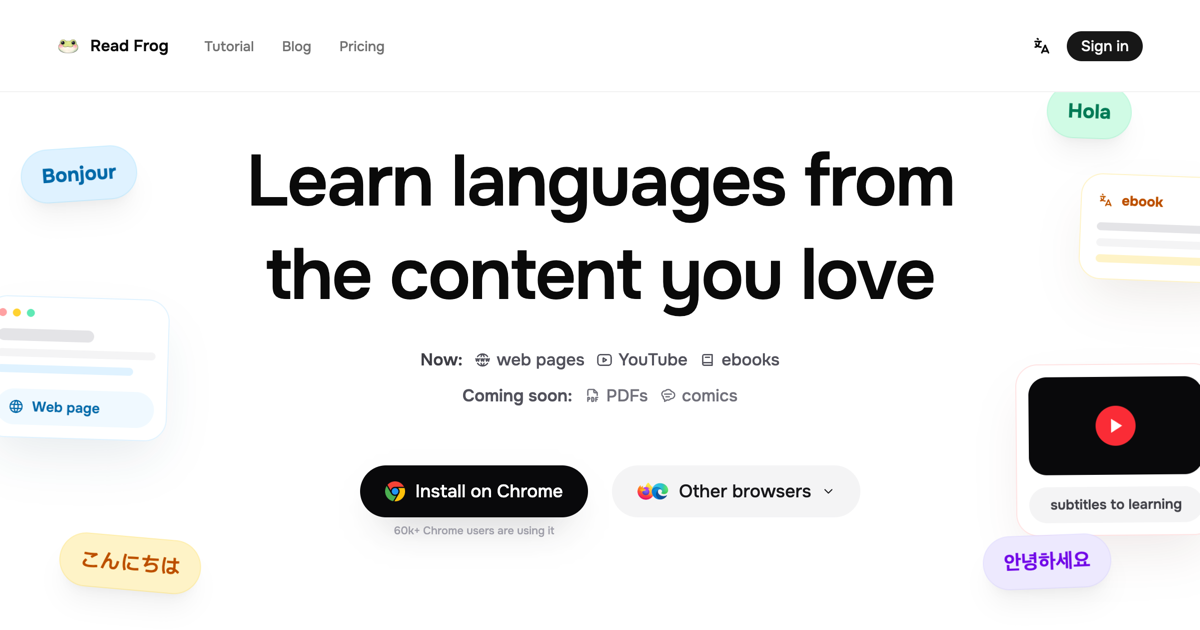
Text tutorial: Five steps to install Read Frog, web bilingual control + free plan for Chinese subtitles on YouTube图文教程:五步装好 Read Frog,网页双语对照 + YouTube 中文字幕的免费方案

Get your hands on the frog: from downloading the extension, turning on the full page bilingual control, to configuring the free translation engine (at no cost), opening the YouTube bilingual subtitles, and finally playing with the transcription translation and the raw word explanation.

手把手带你装好陪读蛙:从下载扩展、开启整页双语对照,到配置免费翻译引擎(不花一分钱)、打开 YouTube 双语字幕,最后玩转划词翻译和生词讲解,一篇跑通。

手把手教程 · 图文步骤

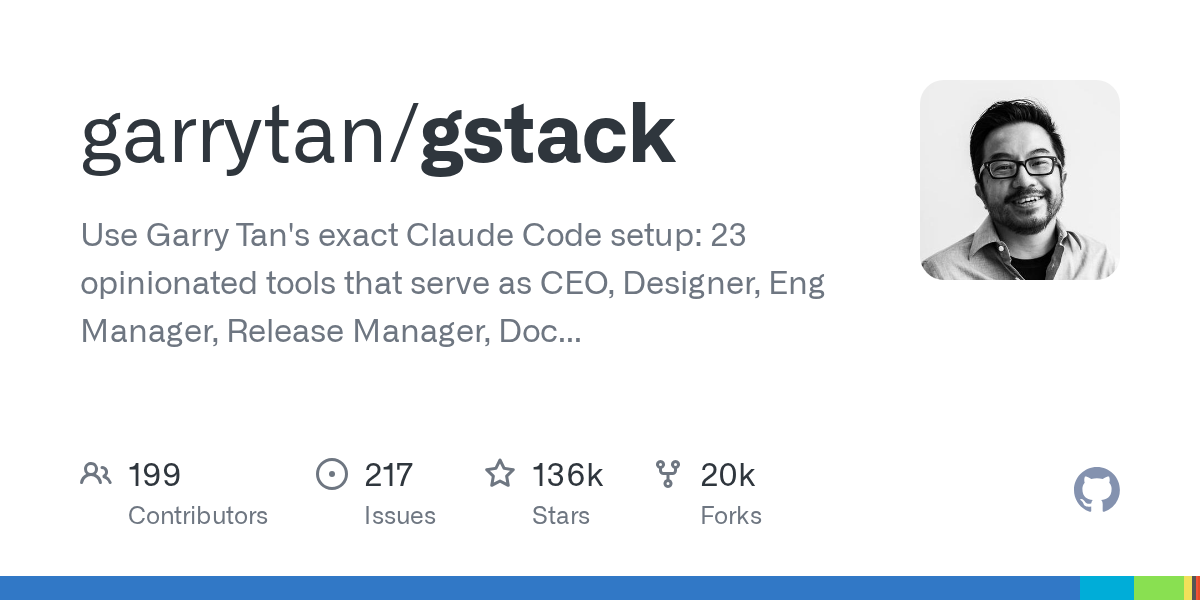
Graphic tutorial: 4 steps to turn Claude Code into a virtual engineering team, from/office-hours to/ship图文教程:四步把 Claude Code 变成虚拟工程团队,从 /office-hours 到 /ship 全流程

Follow the daily usage of Garry Tan, president of YC: install the gstack in 30 seconds, set up the project with/office-hours, let the CEO and engineering manager grind the program to maturity, and finally/qa open the browser for acceptance and/ship release. Each step gives specific commands and hints to avoid the pit.

跟着 YC 总裁 Garry Tan 的日常用法走一遍:30 秒装好 gstack、用 /office-hours 立项、让 CEO 和工程经理把方案磨成熟,最后 /qa 真开浏览器验收、/ship 发布上线。每一步都给出具体命令和避坑提示。

手把手教程 · 图文步骤

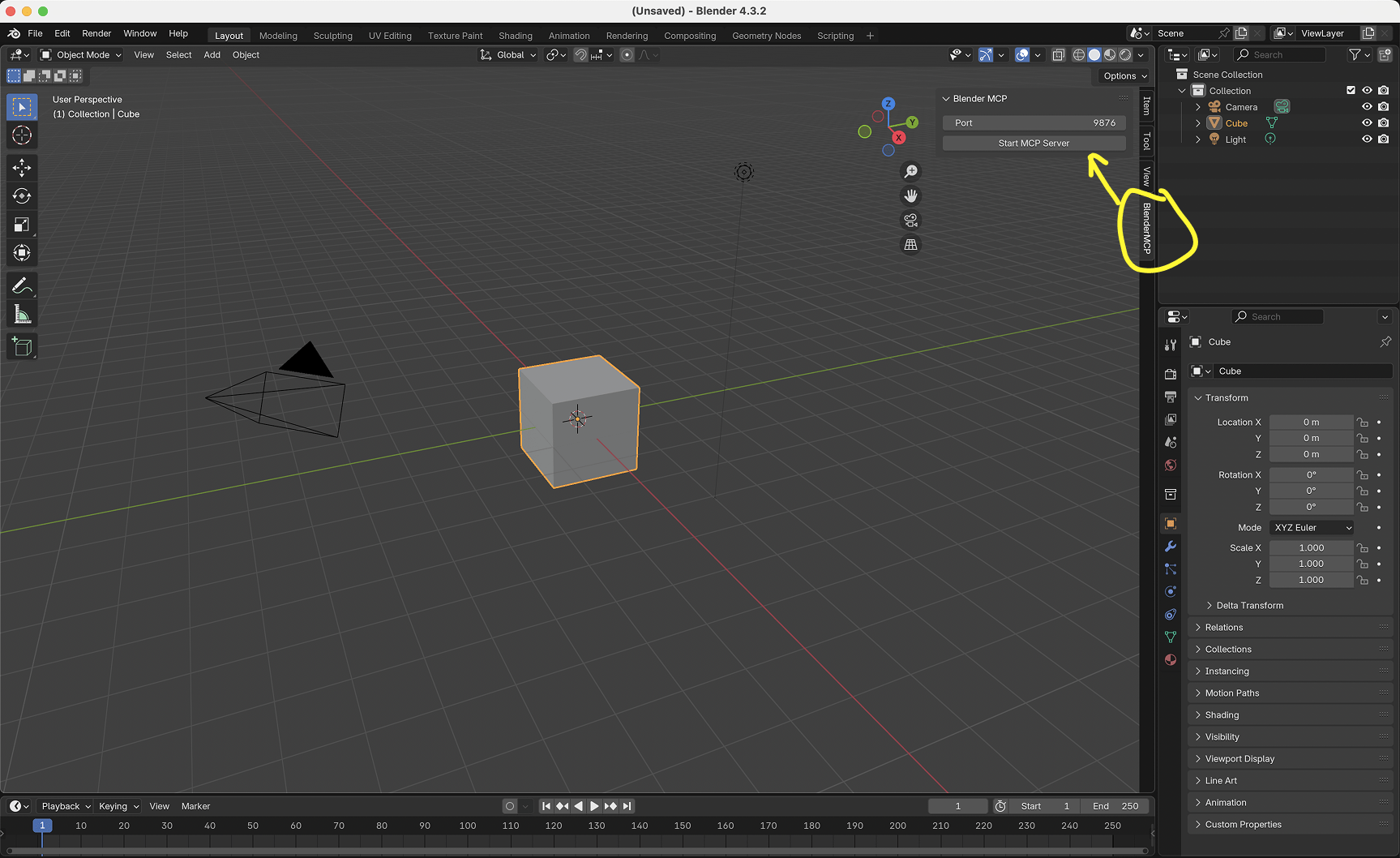
Graphic tutorial: Connect Blender to AI in five steps, and let Claude help you build a 3D scene in just one sentence图文教程:五步把 Blender 接到 AI 上,让 Claude 一句话帮你建 3D 场景

The MCP for Blender plug-in (30,000 stars) added to the library today allows AI to directly operate Blender. This tutorial uses five steps to complete "Install uv → Configure MCP client → Install and enable the Blender plug-in → Test the connection → Let AI build the first scene". It is universal for Windows / macOS and comes with an offline installation plan for the download package from this site.

今天入库的 MCP for Blender 插件(3 万 Star)能让 AI 直接操作 Blender。本教程用五个步骤完成「装 uv → 配 MCP 客户端 → 装并启用 Blender 插件 → 测试连接 → 让 AI 建第一个场景」,Windows / macOS 通用,并附本站下载包的离线安装方案。

手把手教程 · 图文步骤

Graphic tutorial: Use Strix to run an AI automatic penetration in three steps, from installing Docker to getting a vulnerability report with PoC图文教程:三步用 Strix 跑一次 AI 自动渗透,从装 Docker 到拿到带 PoC 的漏洞报告

Strix (66,000 Stars), which is in the database today, is an open source AI penetration testing tool. This tutorial takes you through the first automated security assessment in three steps: Prepare Docker and a large model Key → Install and configure → Point to the target directory to run and understand the report, and add how to integrate it into the Claude Code/CI process.

今天入库的 Strix(6.6 万 Star)是开源的 AI 渗透测试工具。本教程用三个步骤带你跑通第一次自动安全评估:备好 Docker 与大模型 Key → 安装并配置 → 指向目标目录开跑并读懂报告,并补充如何把它接进 Claude Code / CI 流程。

手把手教程 · 图文步骤

Graphic tutorial: Five steps to self-host Camofox so that your agent can capture data no longer blocked by Cloudflare图文教程:五步自托管 Camofox,让你的智能体抓数据不再被 Cloudflare 拦下

We will guide you step by step to start running Camofox Browser locally or on your own server: from downloading and decompressing, starting the service, to using the search macro to capture the first piece of data, and connecting to the ready-made Puppeteer/Playwright script, there is no need to write a single line of anti-crawling code.

手把手带你在本地或自己的服务器上跑起 Camofox Browser:从下载解压、启动服务,到用搜索宏抓第一条数据、接进现成的 Puppeteer/Playwright 脚本,全程不需要写一行反爬代码。

手把手教程 · 图文步骤

Graphic tutorial: Three steps to install the four principles of Karpathy into Claude Code, AI will never "rewrite" your code smoothly again图文教程:三步把 Karpathy 四原则装进 Claude Code,AI 再也不会「顺手重写」你的代码

The Karpathy prompt principle skill package only has one page of CLAUDE.md, but the difference in the behavior of the agent before and after it is installed is visible to the naked eye. This tutorial uses three steps to complete the installation, merge your own project rules, and use a small task to check the effect. It also comes with a Cursor user-specific solution.

Karpathy 提示原则技能包只有一页 CLAUDE.md,但装上前后智能体的行为差别肉眼可见。本教程用三个步骤完成安装、合并你自己的项目规则,并用一个小任务验收效果,附 Cursor 用户专属方案。

手把手教程 · 图文步骤

Graphic tutorial: Three steps to install Internet capabilities into Claude Code, allowing the intelligent body to read Twitter, Bilibili and the entire Internet图文教程:三步把互联网能力装进 Claude Code,让智能体会读推特、B站和全网

I will teach you step by step how to install the Agent Reach that was added to the library today: from downloading and decompressing the source code package, to automatically installing the Agent in one sentence, to verifying access to each platform one by one, all click-level steps will give your programming agent the "eyes of the Internet" in five minutes.

手把手教你安装今天入库的 Agent Reach:从下载解压源码包,到一句话让 Agent 自动安装,再到逐个平台接入验证,全部点击级步骤,五分钟让你的编程智能体长出「互联网的眼睛」。

手把手教程 · 图文步骤

Graphic tutorial: Pick out the skills you need from 388 skills and install them into the AI ​​programming tool in ten minutes图文教程:从 388 个技能里挑出你需要的,十分钟装进 AI 编程工具

I will teach you step by step how to use the Claude Skills 388 collection that was added to the library today: select skills by role, select a directory by tool, verify the installation to take effect, and then teach you how to combine Agent and Persona to string the skills into a workflow. There is zero pip dependency in the whole process, just copy and paste to install.

手把手教你用今天入库的 Claude Skills 388 合集:按角色挑技能、按工具选目录、装完验证生效,再教你组合 Agent 和 Persona 把技能串成工作流。全程零 pip 依赖,复制粘贴就能装。

手把手教程 · 图文步骤

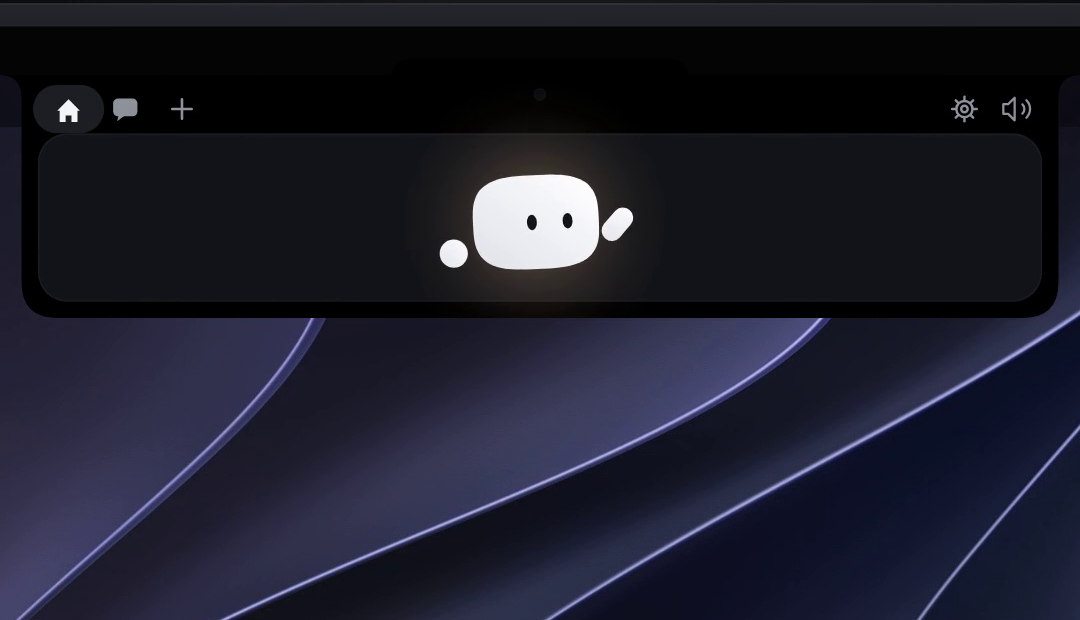
Graphic tutorial: 3 steps to install Coucou, Claude Code permission request one-click approval图文教程:三步装好 Coucou,Claude Code 权限请求一键批准

Hands-on instructions for installing today's Coucou: From downloading and unzipping, authorization to accessing Claude Code hooks, click through the screenshot steps, and let the screen bang for 5 minutes to stare at a small creature for your conversation.

手把手教你安装今天入库的 Coucou:从下载解压、授权到接入 Claude Code hooks,全部点击级截图步骤,5 分钟让屏幕刘海多一只帮你盯会话的小生物。

This tutorial corresponds to Coucou v0.1.2 (2026-10-03 inventory). The green button at the top of this page for the installation package. For Windows users, please go to the Louis-CFM/coucou repository Releases to get the corresponding version.查看 →查看 →
手把手教程 · 图文步骤

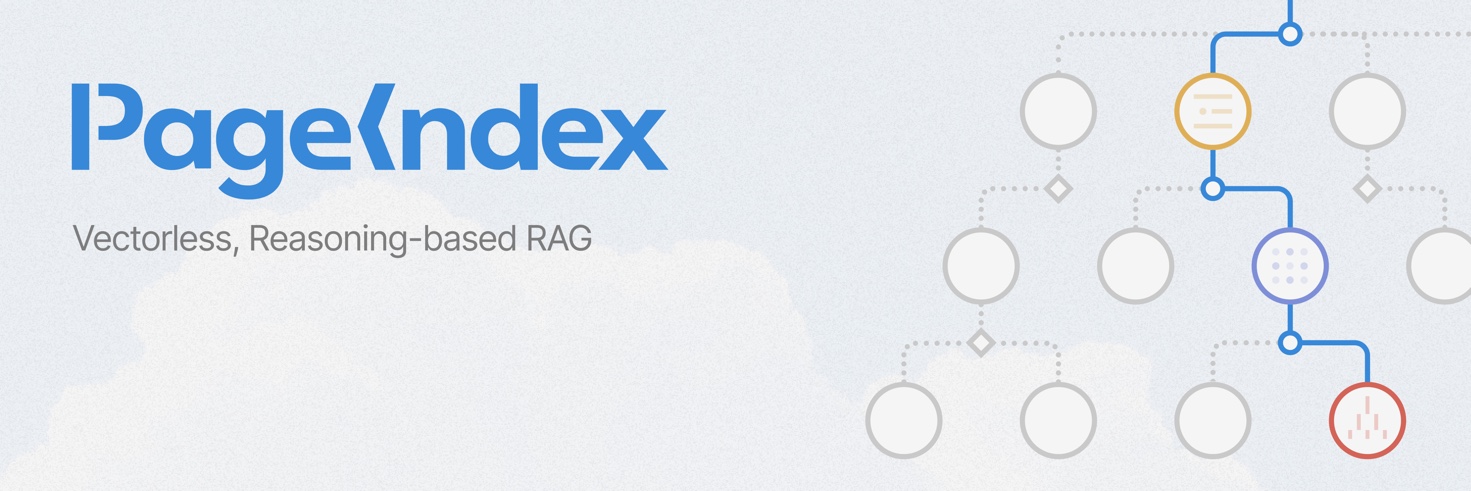
Teletext tutorial: Five minutes to build a no-vector rag with PageIndex that costs nothing图文教程:五分钟用 PageIndex 搭一个不花一分钱的无向量 RAG

Teach you how to use the PageIndex warehoused today: no vector database, no Embedding service, use the free quota LLM to build a tree-like index for your PDF, and then connect any large model for question and answer. Attached are diagrams of official benchmark data.

手把手教你用今天入库的 PageIndex:不用向量数据库、不买 Embedding 服务,拿免费额度的 LLM 给自己的 PDF 建树状索引,再接上任何大模型做问答。附官方基准数据图解。

This tutorial corresponds to PageIndex v0.2.21 (2026-10-03 inventory). The installation package has a green button at the top of this page; see the VectifyAI/PageIndex official repository for cloud APIs and more examples.查看 →查看 →
手把手教程 · 图文步骤

Tutorial: Render your first MP4 in 4 steps with HTML教程:四步用 HTML 渲染出第一条 MP4

4-Step Running Pass: Confirm the environment dependency, initialize the project, preview in the browser in real time, and render to MP4. Add another step to hand over the skills to your agent, and the verbal description of the needs will be released in the future. Works with today's HyperFrames plugin packages.

四步跑通:确认环境依赖、初始化项目、在浏览器里实时预览、渲染成 MP4。再补一步把技能交给你的智能体,以后口头描述需求就能出片。配合今天的 HyperFrames 插件包使用。

Tutorial resources: github.com/heygen-com/hyperframes. Documentation is available at hyperframes.heygen.com with Quickstart, Catalog (off-the-shelf components), and Showcase (finished videos that you can watch, read, and change).查看 →查看 →
手把手教程 · 图文步骤

Tutorial: Four steps to build an agent sandbox with strategy教程:四步给智能体建一个带策略的沙箱

4-Step Running Pass: Confirm the platform, install the CLI and local gateway, build the first sandbox, run a real agent with OpenCode, and experience the process of "approving new permissions". Works with today's NVIDIA OpenShell clients.

四步跑通:确认平台、一行装好 CLI 与本地网关、建第一个沙箱、再用 OpenCode 跑一个真实智能体并体验「批准新权限」的流程。配合今天的 NVIDIA OpenShell 客户端使用。

Tutorial resources: github.com/NVIDIA/OpenShell. It is a very new project (0.1.x is only beginning to release at a steady pace). Before getting started, it is recommended to read the two sections of support-matrix and policies before moving the production environment.查看 →查看 →
手把手教程 · 图文步骤

Tutorial: Four steps to give your coding agent an answer-first style教程:四步给编程智能体装上「先说答案」技能

Four steps: install the marketplace and the skill, verify it with one prompt, make it load automatically in every session, and learn how to exit the style when you actually want a long explanation. About five minutes, and the shorter replies are obvious immediately.

四步跑通:装插件市场与技能、用一条提示词验证是否生效、设为每次会话自动加载、需要详细解释时临时退出。约五分钟,装完立刻能感觉到回复变短。

Tutorial resources: github.com/ayghri/i-have-adhd. The skill rules are plain text, and there is no threshold to change - if you don't like a certain one, you can delete it directly in SKILL.md.查看 →查看 →
手把手教程 · 图文步骤

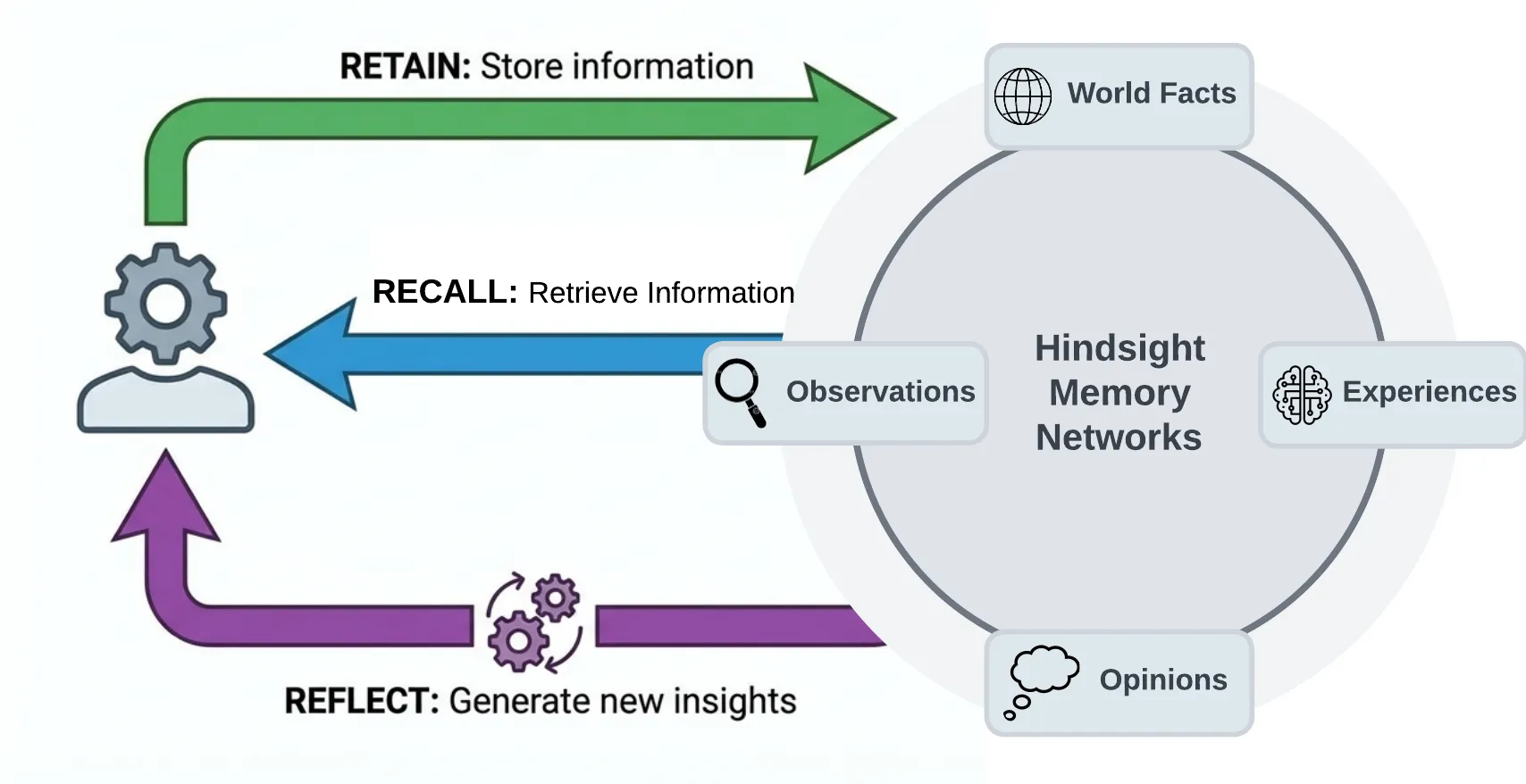
Tutorial: Give your agent long-term memory in four steps (self-hosted Hindsight)教程:四步给智能体接上长期记忆(自建 Hindsight)

Four steps end to end: start the memory service with Docker, create a memory bank and retain your first fact, plug the MCP endpoint into Claude Code, then verify that recall survives a new session. Everything runs locally, so your data never leaves the machine.

四步跑通:Docker 起记忆服务、建一个记忆库并写入第一条记忆、把 MCP 端点接进 Claude Code、最后验证跨会话是否真的记住了。全程本机运行,数据不出机器。

Tutorial resources: github.com/vectorize-io/hindsight (MIT). The complete documentation is available at hindsight.vectorize.io, with separate pages for configuration items, the SDK, and the MCP section.查看 →查看 →
手把手教程 · 图文步骤

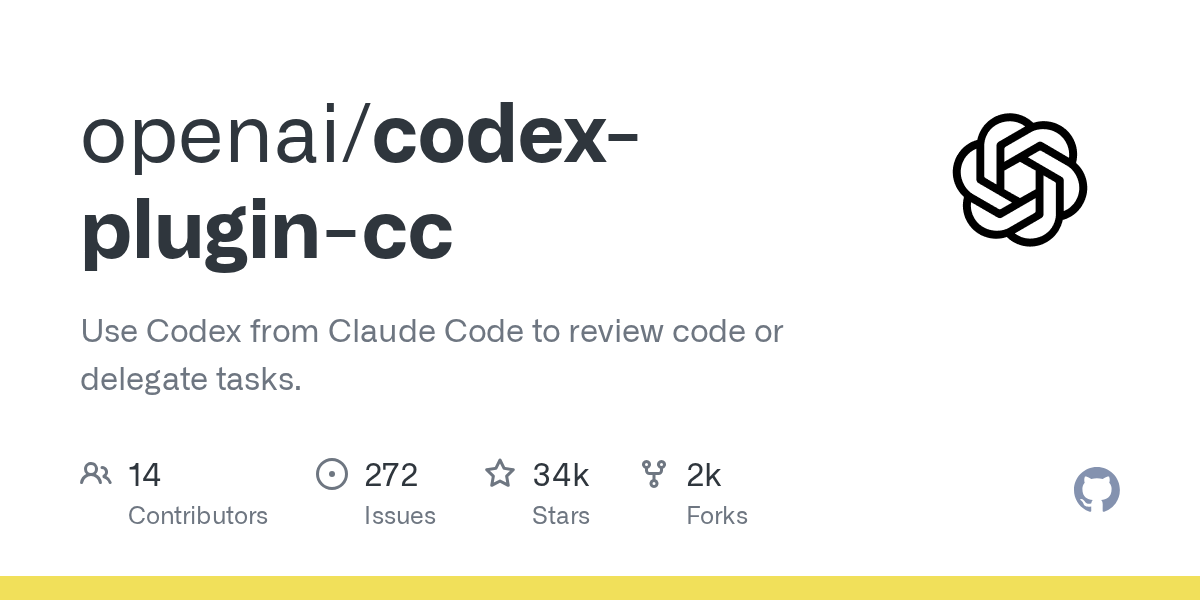
Tutorial: Install Codex into Claude Code and let two programming agents review each other教程:把 Codex 装进 Claude Code,让两个编程智能体互相复核

Four steps: add the official plug-in market, complete the self-inspection, let Codex independently review a change, and then transfer the entire package of stuck tasks to the backend and manage the results. The whole journey takes less than ten minutes.

四步跑通:添加官方插件市场、完成自检、让 Codex 独立审查一次改动、再把卡住的任务整包转交后台并管理结果。全程不到十分钟。

Tutorial supporting resources: github.com/openai/codex-plugin-cc. Reviewing and backend delegation will consume Codex usage. For formal projects, please evaluate the quota cost first.查看 →查看 →
手把手教程 · 图文步骤

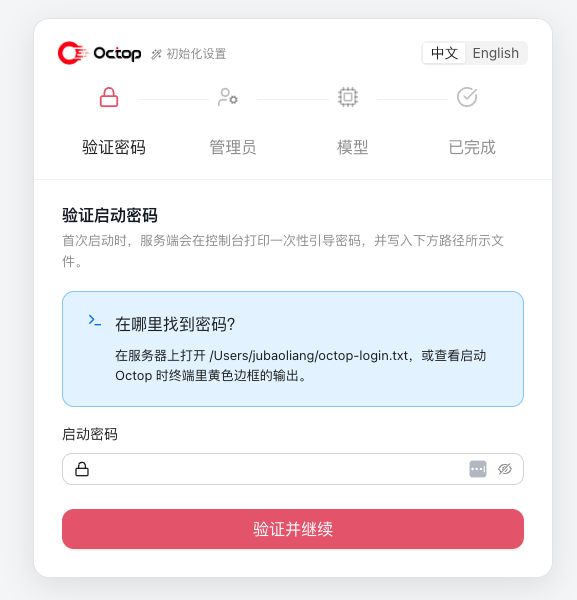
Tutorial: Set up your own Octop multi-agent AI assistant station in four steps教程:四步搭起自己的 Octop 多智能体 AI 助手站

From downloading the 15.7 MB source code package to start the service, to talking to the first expert agent in the browser, to accessing IM group chats and natural language scheduled tasks - a set of assistants that run entirely on your own machine.

从下载 15.7 MB 源码包启动服务,到在浏览器里和第一个专家智能体对话,再到接进 IM 群聊与自然语言定时任务——一套完全跑在自己机器上的助手。

Tutorial supporting resources: github.com/TencentCloud/Octop. Self-hosting means that you are responsible for both data backup and credential security. It is recommended to use only test data to run through the entire process.查看 →查看 →
手把手教程 · 图文步骤

Graphic tutorial: Four steps to use the Claude Cowork official plug-in library to let AI claim your position图文教程:四个步骤用上 Claude Cowork 官方插件库,让 AI 认领你的岗位

Install the 22 official domain plug-ins you just downloaded into your AI client, step by step from selecting plug-ins, placing them in directories, configuring connectors, and verifying the results.

把刚下载的 22 个官方领域插件装进你的 AI 客户端,从挑插件、放目录、配连接器到验证效果,一步步来。

Corresponding to the "Claude Cowork Official Plug-in Library" entry in the "AI Plug-in" column of this site, the plug-in package can be downloaded directly.查看 →查看 →
手把手教程 · 图文步骤

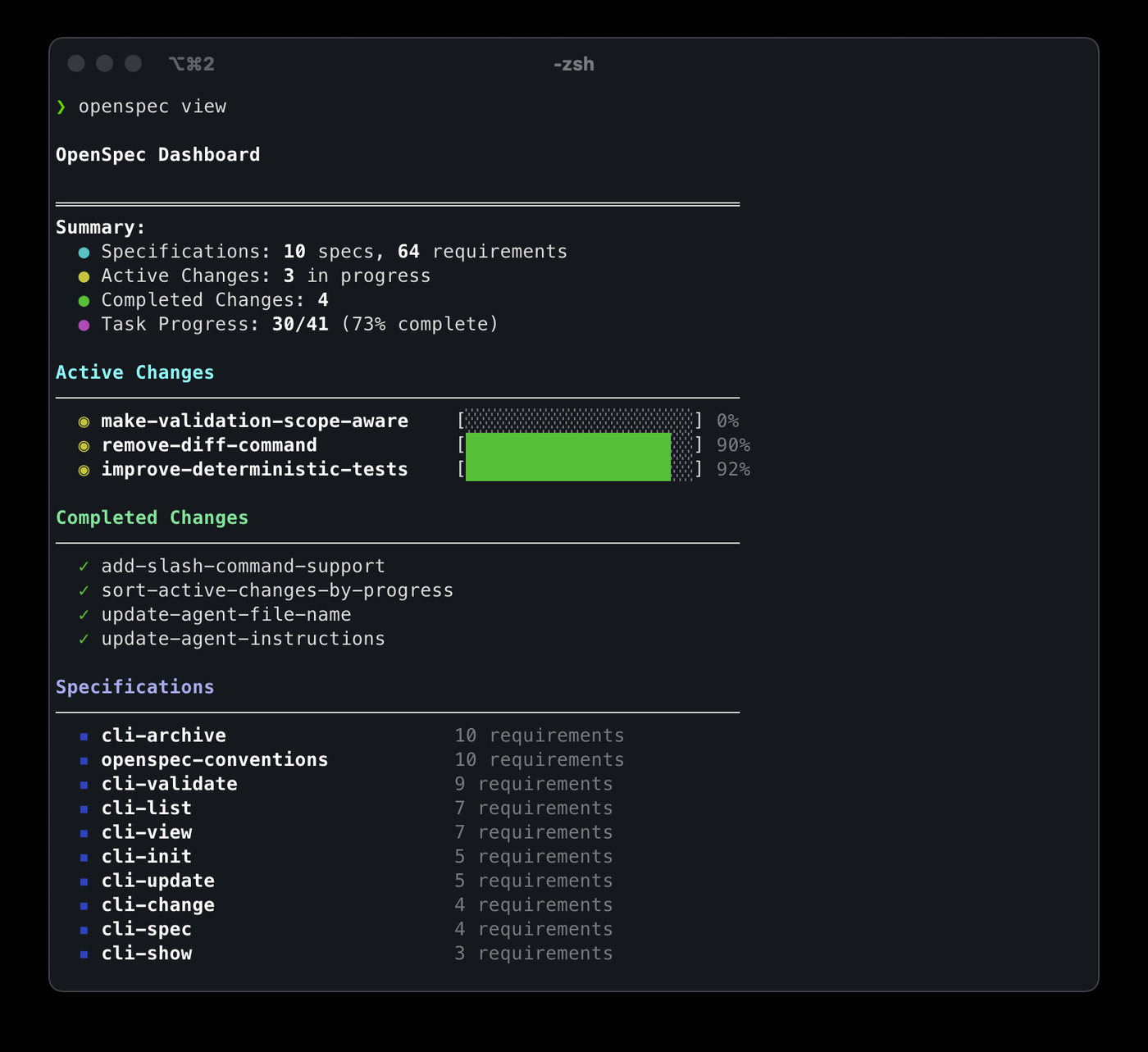
Graphic tutorial: Use OpenSpec to standardize the AI ​​programming process, and turn "casual requests" into acceptable specifications in four steps图文教程:用 OpenSpec 规范 AI 编程流程,四步把「随口提需求」变成可验收的规格

How to use OpenSpec after installing it? From initializing the specification catalog, writing change proposals, breaking down tasks to acceptance according to specifications, the entire set of actions is broken down into four steps to explain clearly.

装好 OpenSpec 后怎么用?从初始化规格目录、写变更提案、拆任务到按规格验收,一整套动作拆成四步讲清楚。

Corresponding to the "OpenSpec v1.13.2" entry in the "AI Tools" column of this site, the source code package can be downloaded directly.查看 →查看 →
手把手教程 · 图文步骤

Graphic tutorial: Use Jianying Headless to let AI help you edit, and the draft can be refined directly图文教程:用 Jianying Headless 让 AI 帮你剪映,草稿可直接精修

The complete process from downloading the source code package to generating the first editable cut draft: preparing materials, writing an editing plan, constructing the draft, and registering to the cut homepage, with pictures for every step.

从下载源码包到生成第一个可编辑剪映草稿的完整流程:准备素材、写剪辑计划、构建草稿、登记到剪映首页,每一步都有图。

Corresponding to the Jianying Headless entry in the "AI Plug-in" column of this site, the source code package can be downloaded directly. If you encounter a version verification error, first confirm that the clipping version is 11.5.0 or 11.4.2.查看 →查看 →
手把手教程 · 图文步骤

Graphic tutorial: Install Sepia skills in three steps so that things written by AI no longer have a machine-like feel图文教程:三步装好 Sepia 技能,让 AI 写的东西不再有机器味

Download the Sepia skill package, install it on your agent client, and use four operations to modify "human-written" articles. Each step has instructions.

下载 Sepia 技能包、安装到你的智能体客户端、用四种操作改出「人写的」文章,每一步都有操作说明。

Corresponding to the Sepia entry in the "AI Skill Pack" column of this site, the skill pack can be downloaded directly.查看 →查看 →
手把手教程 · 图文步骤

Graphic tutorial: Install the AIChats extension in three steps, and hang 5 AIs in the sidebar at the same time图文教程:三步装好 AIChats 扩展,侧栏里同时挂 5 个 AI

Download the AIChats source code package of this site, load it in Chrome developer mode, then add commonly used AI websites to the sidebar, and say goodbye to switching back and forth between tabs.

下载本站的 AIChats 源码包,用 Chrome 开发者模式加载,再把常用 AI 网站添加进侧栏,从此告别标签页来回切换。

This tutorial corresponds to the AIChats entry in the "AI Plug-in" column of this site. The source code package can be downloaded directly from this site.查看 →查看 →
手把手教程 · 图文步骤

Graphic tutorial: Use LiteLLM to build a unified large model gateway in ten minutes图文教程:十分钟用 LiteLLM 搭一个统一大模型网关

Download the LiteLLM official source code package from this site. After installing it, you can use one address and a set of OpenAI format interfaces to simultaneously call hundreds of models such as DeepSeek, Tongyi Qianwen, and Gemini. You can also manage your budget and monitor usage.

下载本站的 LiteLLM 官方源码包,装好后用一个地址、一套 OpenAI 格式接口同时调用 DeepSeek、通义千问、Gemini 等上百种模型,还能管预算、看用量。

This tutorial corresponds to the LiteLLM entry in the "AI Tools" column of this site. The official source code package can be downloaded directly from this site.查看 →查看 →
手把手教程 · 图文步骤

Graphic tutorial: Install persistent memory for AI programming assistant (claude-mem installation guide)图文教程:给 AI 编程助手装上持久记忆(claude-mem 安装指南)

Install claude-mem in five minutes and let programming agents such as Claude Code automatically remember your project background and historical decisions. Say goodbye to the embarrassment of having to explain it again every time you open a session.

五分钟装好 claude-mem,让 Claude Code 等编程智能体自动记住你的项目背景和历史决策,从此告别每次开会话都要重新交代的尴尬。

This tutorial corresponds to the claude-mem entry in the "AI Plug-in" column of this site. The installation package can be downloaded directly from this site.查看 →查看 →
手把手教程 · 图文步骤

Graphic tutorial: Use markitdown to convert Word/PDF into Markdown with one click and feed it to AI图文教程:用 markitdown 把 Word/PDF 一键转成 Markdown 喂给AI

Is the effect poor if the document is thrown directly to AI? Follow this tutorial to install Microsoft's open source markitdown, and convert any office document into clean Markdown with one command before sending it to AI.

文档直接丢给AI效果差?跟着本教程装好微软开源的 markitdown,一条命令把任何办公文档转成干净的Markdown再发给AI。

This tutorial corresponds to the markitdown entry in the "AI Tools" column of this site. The installation package can be downloaded directly from this site.查看 →查看 →
手把手教程 · 图文步骤

Graphic tutorial: Install the Superpowers skill framework and let the agent write code according to the methodology图文教程:安装 Superpowers 技能框架,让智能体按方法论写代码

Install Superpowers, a popular GitHub project, step by step. Equip your programming agent with dozens of "martial arts moves" such as debugging, testing, and refactoring, and say goodbye to blindly generating code at once.

手把手装好 GitHub 热榜项目 Superpowers,给你的编程智能体装上调试、测试、重构等几十种「武功招式」,告别一次性瞎生成代码。

This tutorial corresponds to the Superpowers entry in the "AI Skill Pack" column of this site. The skill pack can be downloaded directly from this site.查看 →查看 →
手把手教程 · 图文步骤

Graphical tutorial: Install the official skill package on AI, it takes three minutes from downloading to taking effect图文教程:给AI装上官方技能包,三分钟从下载到生效

You have downloaded the skill pack, but there are a bunch of unintelligible folders lying on your computer but you dare not move them? This tutorial takes the two official skill packs of Hugging Face and Vercel that were put into the database today as examples to explain clearly "what the skills are, where to put them, and how to verify that they have been installed successfully."

技能包下好了,电脑里躺着一堆看不懂的文件夹却不敢动?这篇教程以今天入库的 Hugging Face 与 Vercel 两个官方技能包为例,讲清「技能到底是什么、放哪里、怎么验证装成功了」。

Today’s Resource Practice·Skill Pack Installation查看 →查看 →
手把手教程 · 图文步骤

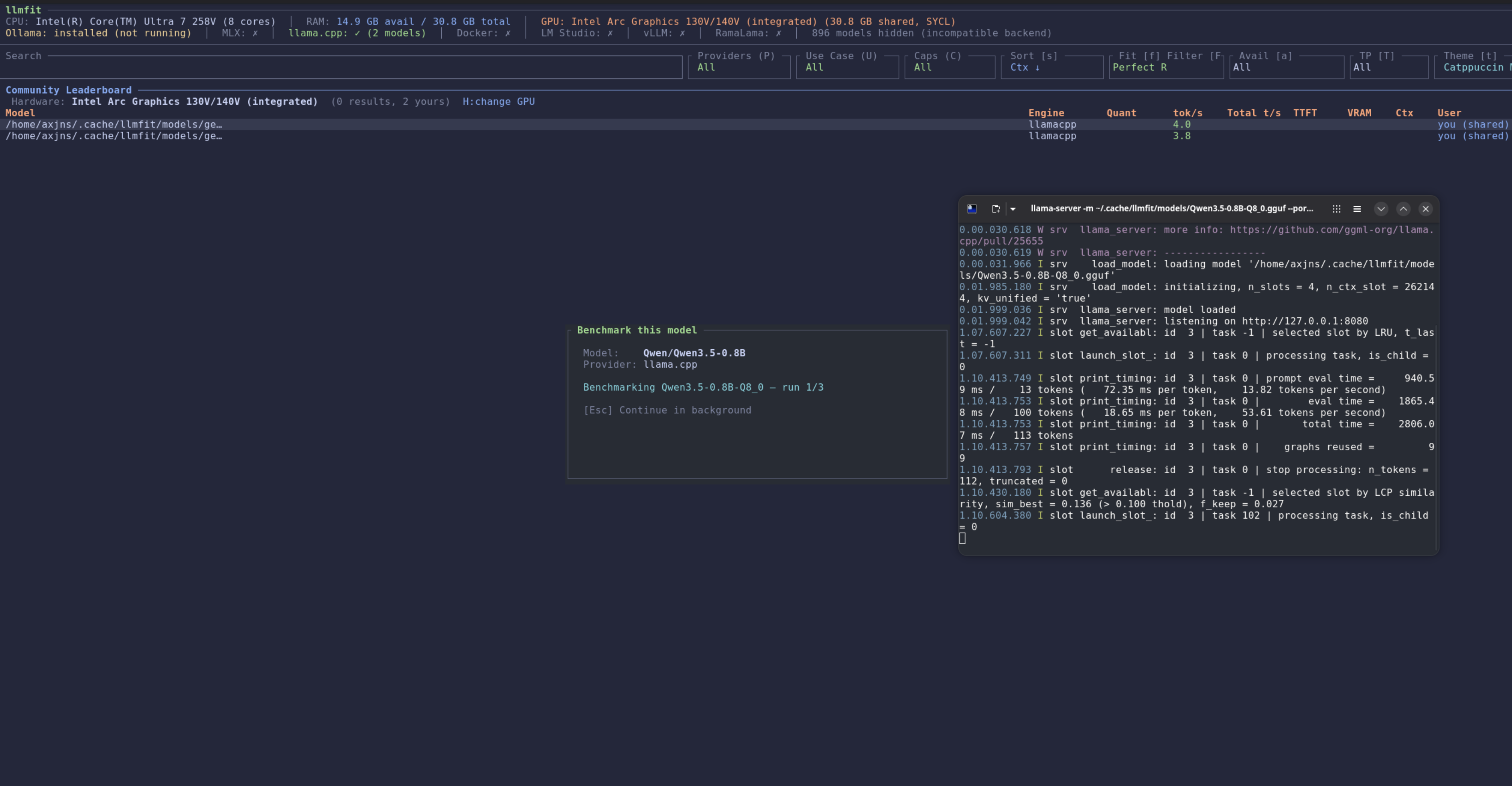
Graphic tutorial: Conduct a safety check on the AI ​​environment, and then run the first large model locally图文教程:给AI环境做一次安全体检,再在本地跑通第一个大模型

Combining the two tools added to the database today, I will teach you step by step to first scan the security risks of the AI ​​environment, and then use llmfit to run the large model locally with one command.

结合今日入库的两款工具,手把手教你先扫描AI环境的安全风险,再用 llmfit 一条命令在本地跑通大模型。

Safety physical examination + local deployment · Today’s resource practice查看 →查看 →
手把手教程 · 图文步骤

Graphic tutorial: Install ChatGPT Box in three steps, and call out AI from any web page图文教程:三步装好 ChatGPT Box,任意网页唤出AI

No need to cut the window: after installing this open source plug-in, press Ctrl+B on any web page to bring up the AI ​​dialog box. This tutorial takes you from downloading to using it.

不用切窗口:装好这个开源插件,任何网页按 Ctrl+B 就能唤出AI对话框。本教程带你从下载到用起来。

Steps with pictures and text · Get ​​started in 5 minutes查看 →查看 →
手把手教程 · 图文步骤

Graphic tutorial: Install immersive translation in three steps, and foreign language web pages will become bilingual in seconds图文教程:三步装好沉浸式翻译,外文网页秒变双语

From downloading the installation package to seeing the bilingual web page, it only takes three steps. There is a schematic diagram for each step, follow it and you will be done in 5 minutes.

从下载安装包到看见双语网页,只需要三步。每步都有示意图,照着做5分钟搞定。

Get started in 5 minutes · Bilingual reading查看 →查看 →
手把手教程 · 图文步骤

Graphic tutorial: Use KISS Translator to achieve bilingual comparison of web pages图文教程:用 KISS Translator 实现网页双语对照

When a foreign language website is opened, Chinese and English will be compared, and the translation will be performed by hovering the mouse. This tutorial covers everything from installation to daily use, and can be completed in 5 minutes.

外文网站打开就是中英对照,鼠标悬停即翻译。本教程从安装讲到日常使用,5分钟搞定。

Picture and text steps · Bilingual reading查看 →查看 →
手把手教程 · 图文步骤

Graphic tutorial: Hand over the browser to AI and use Nanobrowser to automatically do price comparison and data collection图文教程:把浏览器交给AI,用 Nanobrowser 自动做比价和资料收集

Downloaded the multi-agent browser plug-in but don’t know how to open it? This tutorial uses the real task of "selecting three products to make a comparison table" and walks through the entire process from installation, model matching to writing task descriptions. You can get started in just ten minutes.

下载了多智能体浏览器插件却不知道怎么开口?这篇教程用「选三款商品做对比表」这个真实任务,把从安装、配模型到写任务描述的全过程走一遍,跟着做十分钟就能上手。

Today’s Resource Practice · Browser Agent查看 →查看 →
手把手教程 · 图文步骤

Graphic tutorial: Install AI writing assistant for Obsidian Notes图文教程:给 Obsidian 笔记装上 AI 写作助手

Select text in the note and let AI continue writing, rewriting, and summarizing; it can also answer questions based on the entire note library. Install it step by step until it is usable.

在笔记里选中文字就让AI续写、改写、总结;还能基于整个笔记库回答问题。手把手装到能用。

Graphic steps · AI notes查看 →查看 →
手把手教程 · 图文步骤

Graphic tutorial: Run AI Assistant (Page Assist) in the browser sidebar图文教程:浏览器侧边栏跑起 AI 助手(Page Assist)

Look at the webpage on the left and ask the AI ​​on the right, and it can also summarize the current page. Advanced gameplay: connect to the local model, the data does not leave the computer.

左边看网页右边问AI,还能总结当前页面。进阶玩法:接本地模型,数据不出电脑。

Graphic steps · Sidebar AI查看 →查看 →
手把手教程 · 图文步骤

Graphic tutorial: Use the security audit skills package to conduct a vulnerability physical examination of your own project图文教程:用安全审计技能包,给自己的项目做一次漏洞体检

Download the Cloudflare security audit skills package that was added to the database today. In four steps, let AI scan the project according to the six-stage process, and finally get a list of vulnerabilities that can locate files and lines.

下载今天入库的 Cloudflare 安全审计技能包,四步让AI按六阶段流程把项目扫一遍,最后拿到一份能定位到文件和行的漏洞清单。

Today’s resource practice · AI security audit查看 →查看 →
手把手教程 · 图文步骤

Graphic tutorial: Pack AI skills into your AI and start automated office work in three steps图文教程:把AI技能包装进你的AI,三步开始自动化办公

What is a skill pack, how to install it, and how to use it? This tutorial uses the Word document skills package as an example, and installs it in three steps and completes the first task.

技能包是什么、怎么装、怎么用?本教程用Word文档技能包举例,三步装好并跑通第一个任务。

Getting started with skill packs · Three steps to get started查看 →查看 →
手把手教程 · 图文步骤

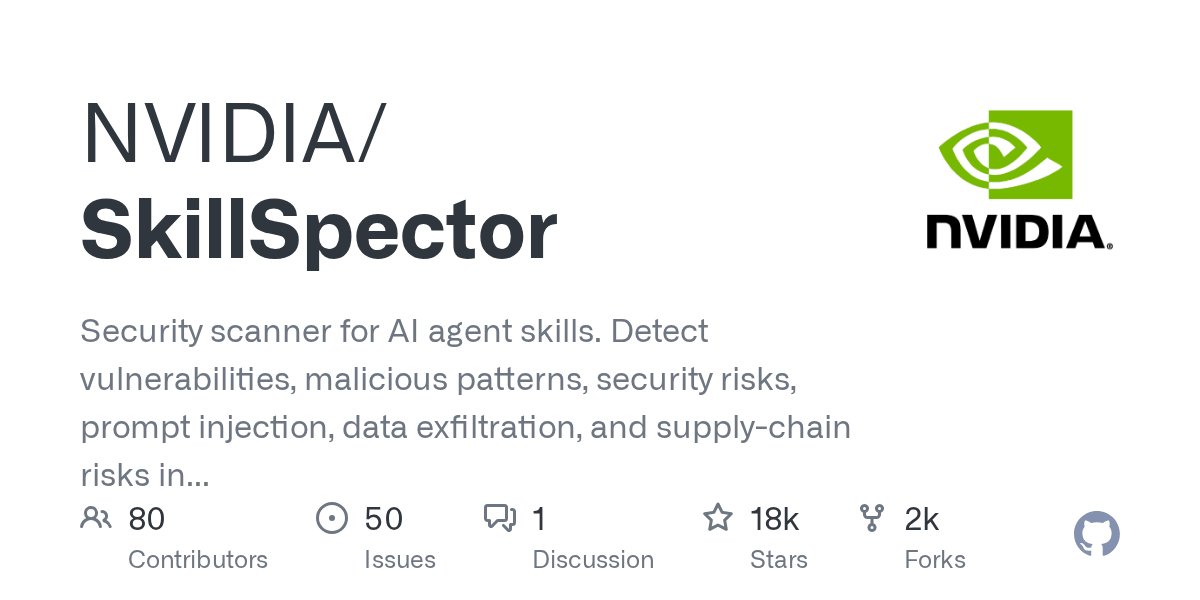
Graphic tutorial: Before installing the AI ​​skill package, let it go through security inspection (SkillSpector)图文教程:装AI技能包之前,先让它过一遍安检(SkillSpector)

Is the skill pack downloaded from the Internet safe? Follow this tutorial and use NVIDIA's open-source SkillSpector to scan through it and see clearly prompt word injection, data outgoing and supply chain risks in five minutes.

从网上下载的技能包到底安不安全?跟着这篇教程用英伟达开源的 SkillSpector 扫一遍,五分钟看清提示词注入、数据外传和供应链风险。

Today’s resource practice · Skill package security查看 →查看 →